Type Tamil & Marathi in PixelLab Using Custom Fonts (2026)
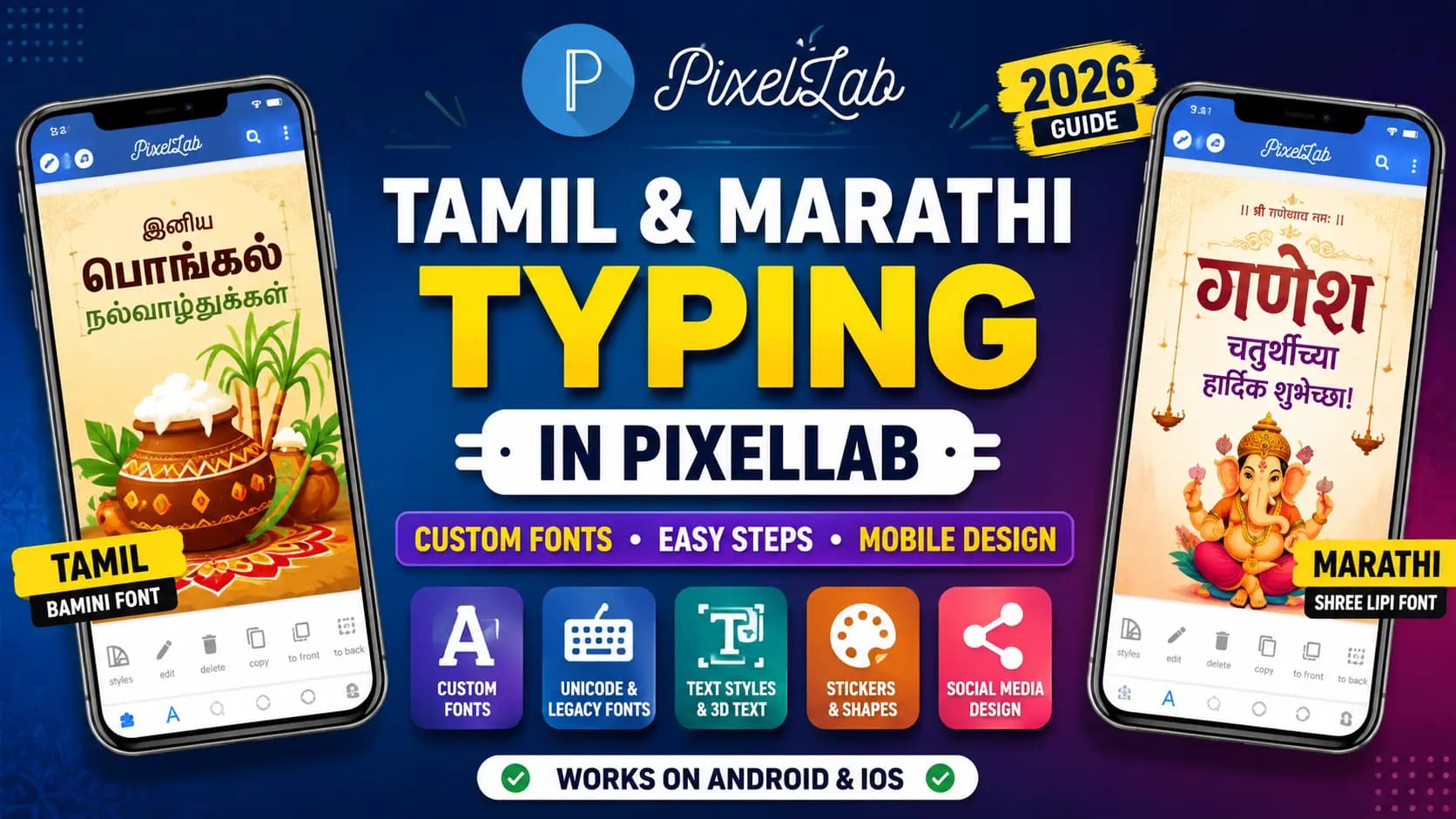
PixelLab is a mobile app for creating Tamil and Marathi posters, Instagram graphics, WhatsApp Status images, festival greetings, and YouTube thumbnails. It supports custom font workflows using Unicode and legacy fonts such as Bamini for Tamil and Shree Lipi for Marathi. Unicode text can be typed directly with a regional keyboard, while legacy fonts require text conversion before font import. This guide explains PixelLab Tamil and Marathi typing, custom font installation, Unicode conversion, and practical mobile design workflows.
Table of Contents
What Is PixelLab
PixelLab is a mobile photo and text editing app used for posters, social media graphics, YouTube thumbnails, WhatsApp Status designs, festival greetings, and promotional images directly on your smartphone. Tool is for text layers, custom fonts, 3D text, stickers, shapes, shadows, gradients, and image editing, making it useful for mobile graphic design. For Tamil and Marathi typography, PixelLab can also be used with Unicode and imported font files, including workflows involving Bamini, Shree Lipi, and other regional-language fonts. This makes PixelLab a practical option for Tamil and Marathi poster design, social media content, and mobile DTP-style graphics.
Two Ways to Type Tamil or Marathi in PixelLab
Method 1 — Typing directly in Unicode
If you're using a regular Unicode font — the kind that displays correctly everywhere without any special setup — you can simply switch your phone's keyboard to Tamil or Marathi using Gboard, and type directly into PixelLab's text tool. This works exactly like typing a normal WhatsApp message, and the text will look correct immediately, with no extra steps.
Method 2 — Using a custom legacy font (Bamini or Shree Lipi)
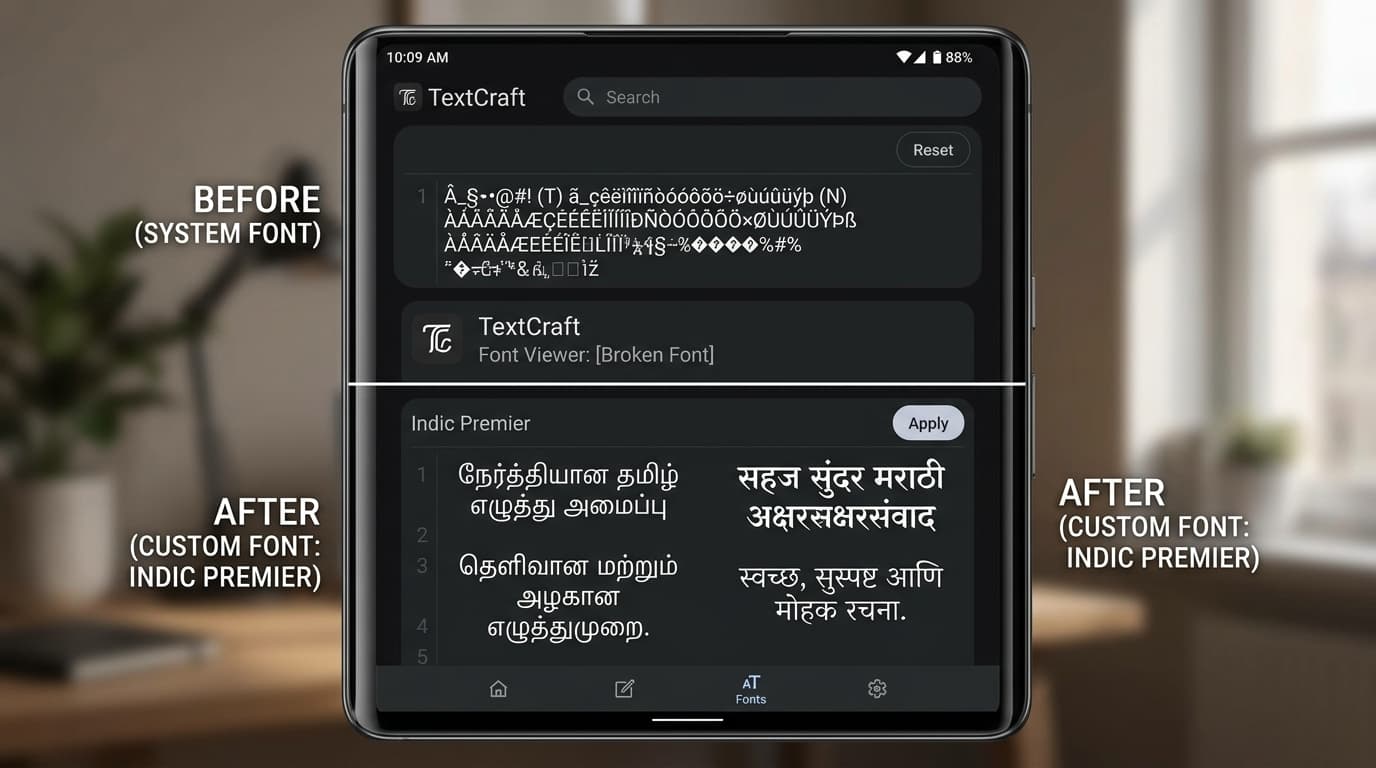
If you want to use a specific decorative or legacy font — a Bamini-style Tamil font or a Shree Lipi-style Marathi font — typing directly with a Tamil or Marathi keyboard will not work. These fonts store script shapes on ordinary English key positions, so a direct Tamil or Marathi keystroke produces the wrong, unmapped character (For more context, learn why Bamini text looks like symbols). Instead, you need to convert your text first, then paste the result.
Step-by-Step: Adding a Custom Tamil or Marathi Font in PixelLab
Step 1 — Convert your text first
Type your message in normal Unicode Tamil or Marathi, then convert it to the legacy font you plan to use — Bamini for Tamil, or Shree Lipi for Marathi — using a dedicated converter. Copy the converted output.
Step 2 — Download the matching font file
Download the exact TTF font file that matches your converted text — for example, the correct Bamini or Shree Dev variant — and save it to your phone's Downloads folder. You can find legacy fonts at our Download Legacy Fonts Page.
Step 3 — Import the font into PixelLab
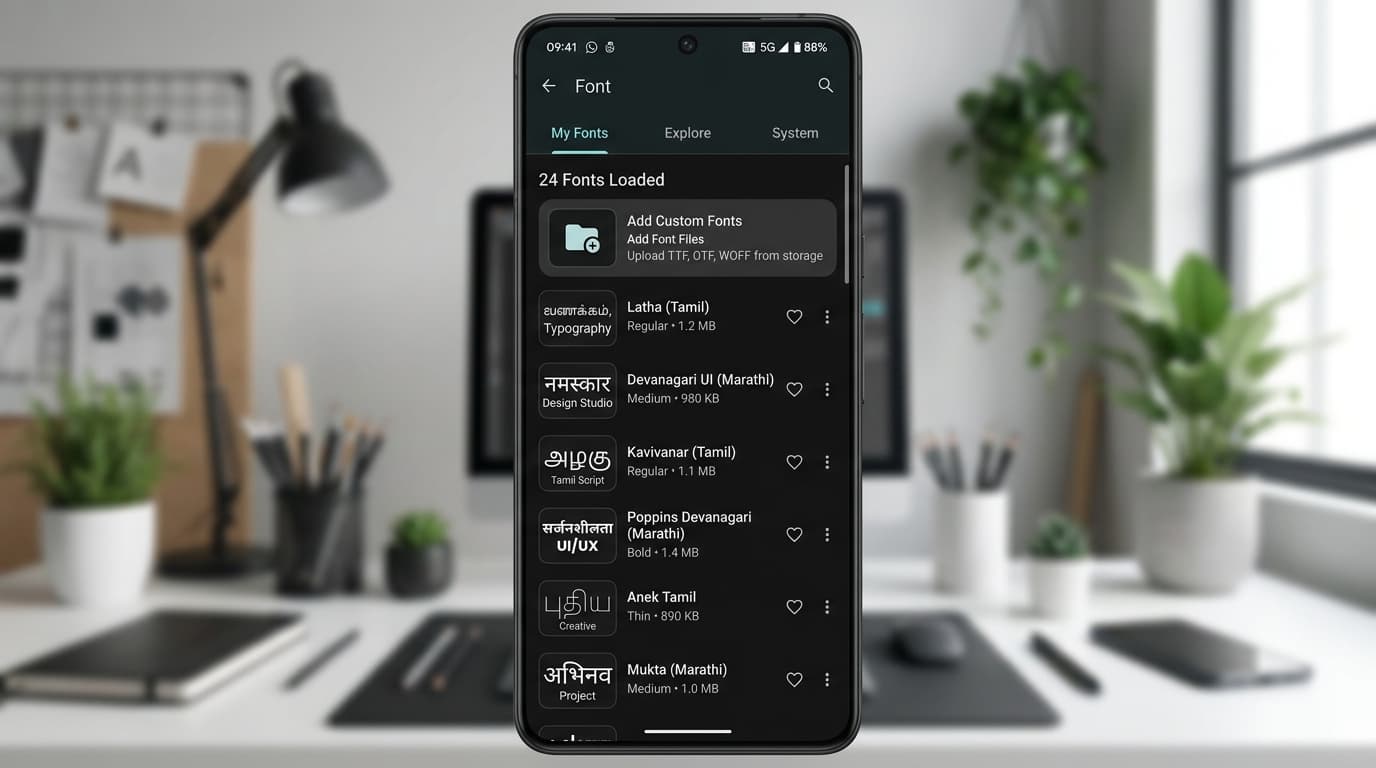
Open PixelLab, add a text layer, then go to the Font menu. Tap My Fonts, then the folder icon, and browse to your Downloads folder to select and import the font file.
Step 4 — Paste your converted text
Tap into the text box and paste the converted text you copied in Step 1 — not text you type directly with a Tamil or Marathi keyboard.
Step 5 — Apply the font and check the result
Select your newly imported font from the font list. The pasted text should immediately display as correct, properly formed Tamil or Marathi script. Test it with a longer word first, since that's where mapping issues, if any, tend to show up clearly.
Where This Actually Gets Used
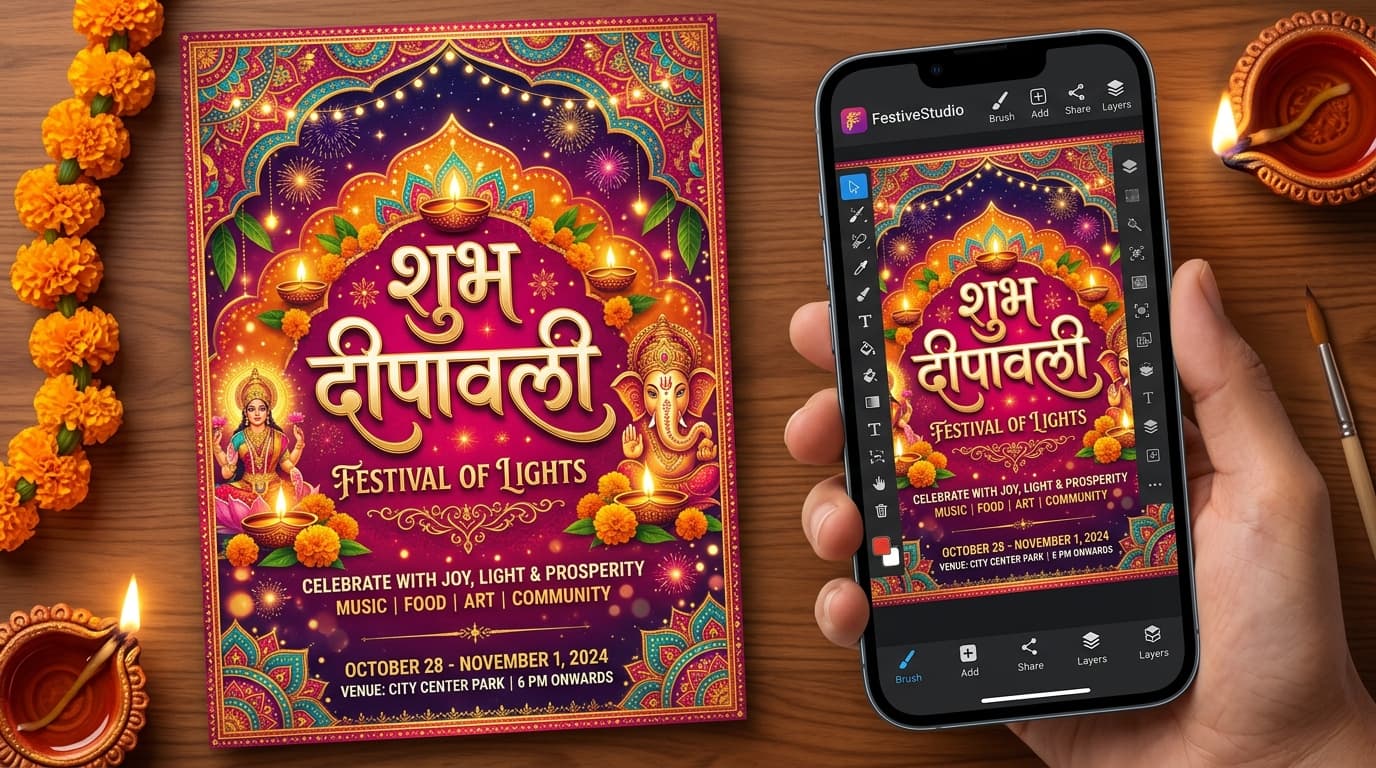
This exact workflow shows up constantly in real, everyday mobile design across India — Diwali and Pongal posters made the night before a festival, Ganesh Chaturthi and wedding invitation graphics, shop banners knocked out on a phone between customers, and stylish Instagram bios or WhatsApp status images that need that specific decorative font look a plain Unicode font can't give.
Key Takeaways
- Unicode fonts can be typed directly into PixelLab using Gboard.
- Legacy fonts like Bamini and Shree Lipi require text conversion first.
- Custom TTF fonts can be easily imported into PixelLab via the "My Fonts" menu.
- PixelLab is a powerful mobile tool for regional-language design work, bypassing the need for a PC.
Conclusion
Tamil and Marathi typing in PixelLab isn't complicated once you know the one rule that decides everything: Unicode fonts can be typed directly, but legacy fonts like Bamini and Shree Lipi always need converted text pasted in. Get that one step right, and PixelLab becomes a genuinely powerful, fully mobile design tool for festival posters, status images, and everyday regional-language design work.
For converting your text correctly before pasting it into PixelLab, the Unicode to Bamini Converter and Unicode to Shree Lipi Converter at unicodetoshreelipi.com work entirely from your phone's browser — no computer needed.
Related Guides:
- Why Does Bamini Text Look Like Symbols? Fix Garbled Text →
- Bamini vs TAB vs TAM Fonts: Which One Should You Use? →
- Marathi Typing Rules & Shortcuts – Complete Guide for Unicode and Shree Lipi (2026) →
- Shree Dev 0714 Complete Guide – Uses, Installation & Unicode Conversion →
- SaiIndira Font Explained — How It Differs from Bamini →
Frequently Asked Questions
Ready to convert? Our main tool handles Unicode ↔ Shree Lipi with the same accuracy and speed — instantly in your browser.
Try Unicode ↔ Shree Lipi Converter