How to Store Digital Documents Safely on Your Phone (2026)
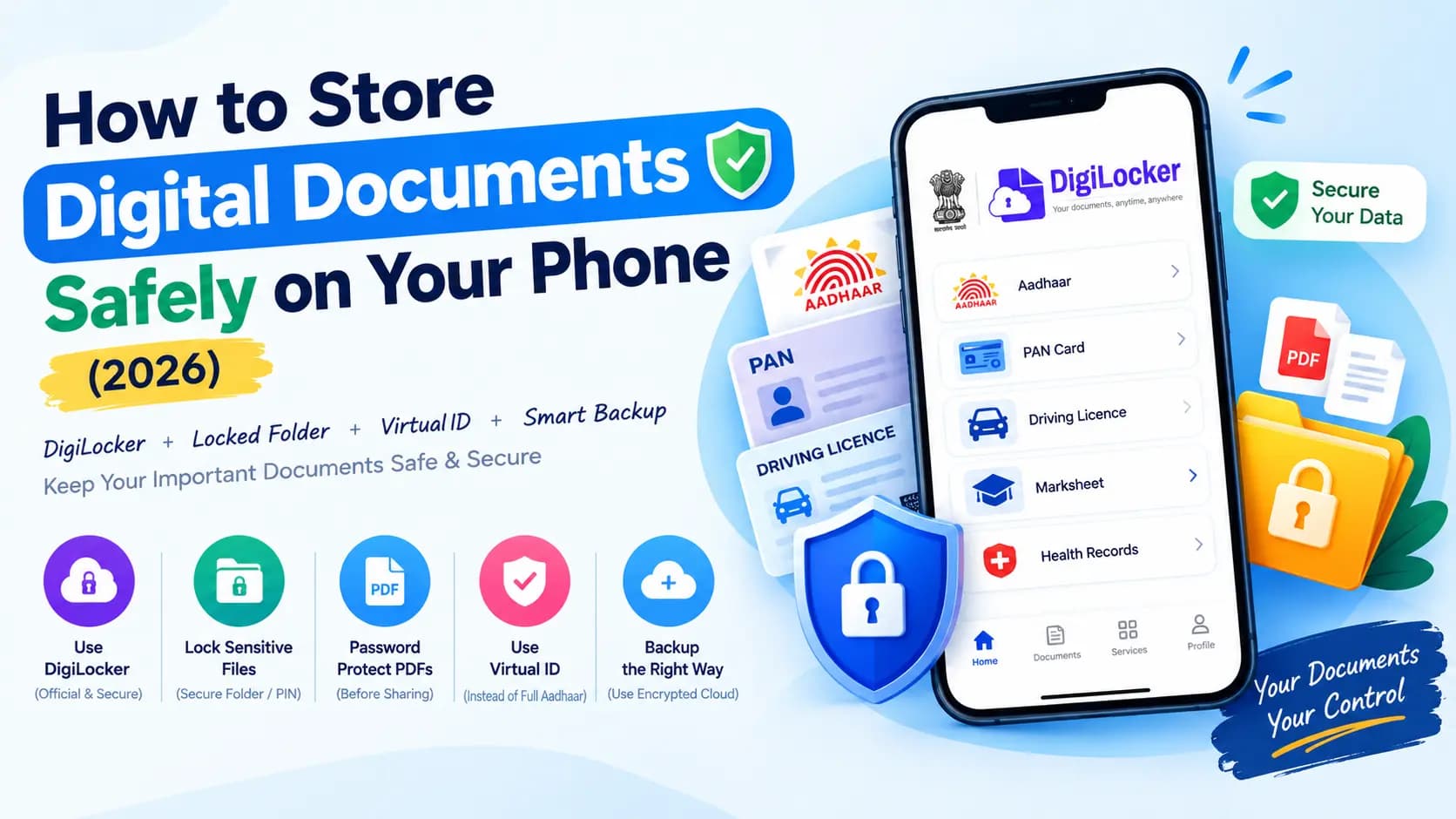
Most people's Aadhaar, PAN, and bank documents live in one place: the phone gallery, saved as plain photos, visible to anyone who picks up the phone or who the images get accidentally shared with. It's convenient — and it's exactly the kind of habit that official government cyber-safety advisories specifically warn against.
Storing a digital document safely doesn't need special technical skill. It needs the right storage method and a handful of simple habits. Here's exactly what that looks like.
Table of Contents
Why Your Phone Gallery Isn't Safe for Documents
Photos in your gallery aren't encrypted, aren't password-protected on their own, and are often the first thing visible if someone unlocks your phone, if an app is accidentally given gallery access, or if a photo gets auto-backed-up and shared without you realising it.
Cyber Dost, the official cyber-safety awareness initiative under India's Ministry of Home Affairs, specifically advises enabling a password or pattern lock with an automatic screen-lock timer on any phone holding personal documents, and warns against sharing copies of PAN, Aadhaar, voter ID, or driving licence details with unknown parties. A gallery photo bypasses almost every one of these protections by default.
Key Takeaways
- Gallery photos are unencrypted — anyone with phone access can see them
- DigiLocker is the officially backed, encrypted alternative for government documents
- Use your phone's built-in locked folder for PDFs and bank documents
- Generate a Virtual ID (VID) when you only need to prove identity, not share your full Aadhaar number
- Cloud backups (Google Drive) are safe when protected with a strong password and two-factor authentication
Use DigiLocker Instead of Your Gallery
For government-issued documents specifically, DigiLocker is the safer, officially backed alternative. Documents issued through DigiLocker are legally recognised as equivalent to the original physical document under IT Act rules, and the platform uses encrypted storage rather than a plain image file sitting in your photo library.
Instead of screenshotting or photographing your Aadhaar or driving licence for quick access, pull the verified copy directly into DigiLocker and access it from there whenever it's needed — for KYC, travel, or official verification.
| Feature | Phone Gallery | DigiLocker |
|---|---|---|
| Encryption | None by default | Yes — encrypted storage |
| Legal validity | Photo only — not verified | Legally equivalent to original |
| Password protection | Not on its own | Yes — requires login |
| Auto-backup risk | High — may sync to cloud | Controlled — app only |
| Government backed | No | Yes — MeitY / India |
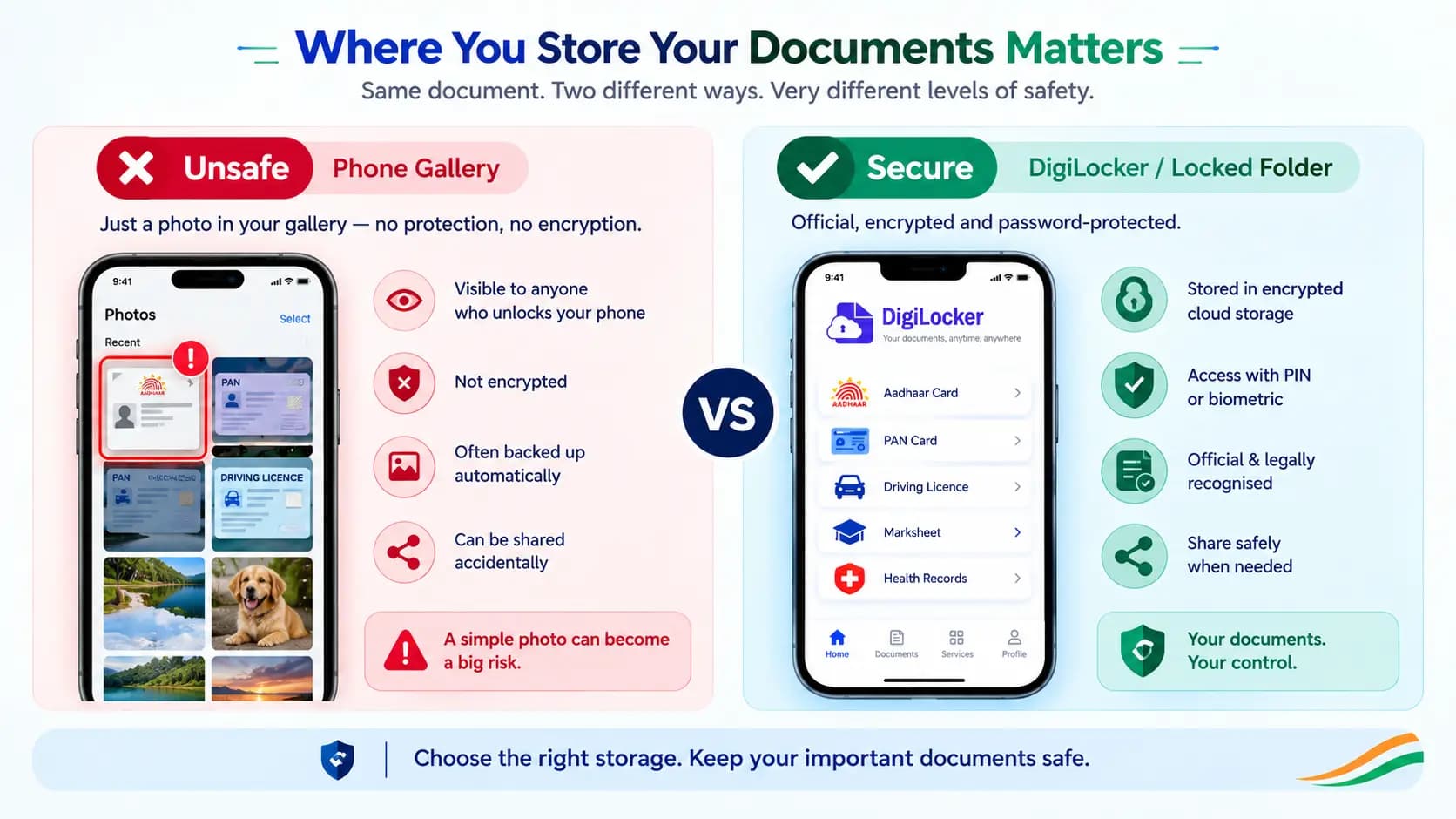
Left: a document saved as a plain gallery photo — unencrypted and unprotected. Right: the same document secured inside DigiLocker with encrypted, login-protected storage.
Lock Down Documents You Must Keep as Photos or PDFs
Not everything fits into DigiLocker — bank statements, rental agreements, and insurance papers often still exist only as photos or PDFs. For these, a few habits make a real difference.
- Move sensitive files into a locked folder or vault app rather than your main gallery — most phones now offer a built-in secure folder or locked folder feature that requires a separate PIN to open.
- Password-protect PDF files where possible, especially before sharing them over email or messaging apps.
- Enable your phone's general screen lock with a short auto-lock timer, so a lost or momentarily unattended phone is not an open door to everything stored on it.
Tip: On Android, look for Locked Folder inside Google Photos. On Samsung devices, find Secure Folder in Settings under Biometrics and Security. On iPhone, use the hidden album with Face ID protection.
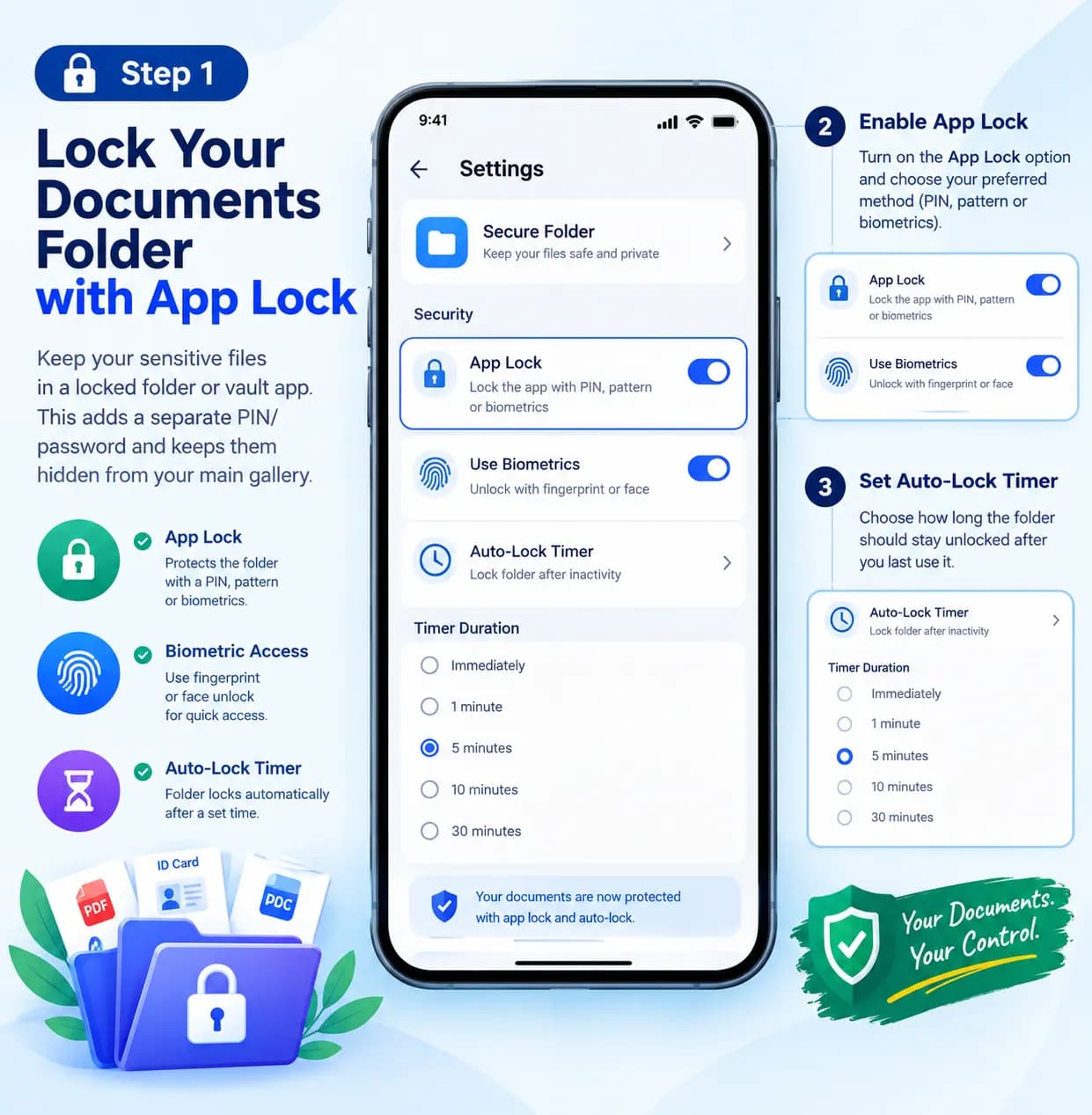
Enabling a separate app lock and auto-lock timer on your document folder — the two settings that matter most.
Use a Virtual ID Instead of Your Full Aadhaar Number
When a document needs to be shared and only verification is actually required — not your full Aadhaar number — use a Virtual ID (VID) instead. It's a temporary, UIDAI-generated substitute that confirms your identity without exposing your actual 12-digit Aadhaar number, and it can be generated directly through the UIDAI website or the mAadhaar app.
- A VID is 16 digits long and is valid until you generate a new one
- It can be used anywhere Aadhaar-based verification is accepted
- It does not expose your actual Aadhaar number to the verifying party
- You can generate a new VID at any time, which invalidates the previous one
Back Up Documents the Safe Way
If you back up documents to the cloud, use a reputable, encrypted service like Google Drive rather than relying solely on default photo auto-backup, which typically offers no extra protection layer for sensitive files.
Where possible, keep sensitive documents in a separate, named folder rather than mixed in with casual personal photos — this alone reduces the chance of accidentally sharing the wrong file when sending someone else a picture from your gallery.
| Storage Method | Best For | Minimum Safety Step |
|---|---|---|
| DigiLocker | Aadhaar, driving licence, mark sheets, vehicle RC | Enable app lock or biometric login |
| Locked Folder (phone) | Bank statements, rental agreements, insurance | Use a separate PIN from your screen lock |
| Google Drive | PDFs and scanned documents for backup | Strong password plus two-factor authentication |
| Phone Gallery (plain) | Avoid for sensitive documents | At minimum, enable phone screen lock |
Common Mistakes to Avoid
- Saving Aadhaar or PAN as a named contact photo — visible to any app with contacts access
- Sharing document photos via WhatsApp without checking the recipient first — WhatsApp compresses images but keeps them in the recipient's gallery
- Using the same PIN for your locked folder and your screen lock — defeats the purpose of the extra layer
- Auto-backup to an unprotected Google account — anyone who accesses your Google account gets access to everything backed up
- Sharing your full 12-digit Aadhaar number when a Virtual ID would do the same job
Conclusion
Keeping sensitive documents safe on your phone is not about using complicated security tools — it is about a few deliberate habits: using DigiLocker for official documents instead of gallery photos, locking anything sensitive behind a separate PIN, password-protecting PDFs before sharing them, and using a Virtual ID when your full Aadhaar number is not actually needed.
Set these up once, and your documents stay genuinely protected without adding any real friction to your daily phone use.
Related Guides
Frequently Asked Questions
Ready to convert? Our main tool handles Unicode ↔ Shree Lipi with the same accuracy and speed — instantly in your browser.
Try Unicode ↔ Shree Lipi Converter