CorelDRAW Mein Hindi Typing Kaise Kare – Shree Lipi Method (Complete Guide 2026)
You paste Hindi text into CorelDRAW. Boxes appear. Or worse — a jumble of random English letters stares back at you. Sound familiar?
If you work in Hindi or Marathi design, this moment has probably happened to you more than once. It is frustrating, it wastes time, and if you have a client deadline sitting on top of it, the pressure doubles fast.
Here is the good news: there is a clean, proven fix. It is called the Shree Lipi method, and it is exactly what India's professional DTP industry has been using for decades to get perfect Hindi output in CorelDraw. Once you learn it, you will never go back to guessing.
This guide walks you through the whole thing — step by step, no jargon.
Table of Contents
Why Does Hindi Text Break in CorelDRAW?
Let's get this out of the way first because understanding the problem makes the solution click immediately.
CorelDRAW was built for Latin-script languages. English, French, German no problem. But Devanagari is a completely different beast. Matras attach to consonants. Half-forms sit beside letters. Conjuncts merge two characters into one. CorelDRAW's text engine, especially in older versions, simply was not designed to handle any of that.
So when you paste Unicode Hindi copied from WhatsApp, Google Docs, a website, anywhere, CorelDRAW reads it as random ASCII characters. That is why you see boxes or broken letters. It is not a bug. The software is doing exactly what it was designed to do. It just was not designed for Hindi.
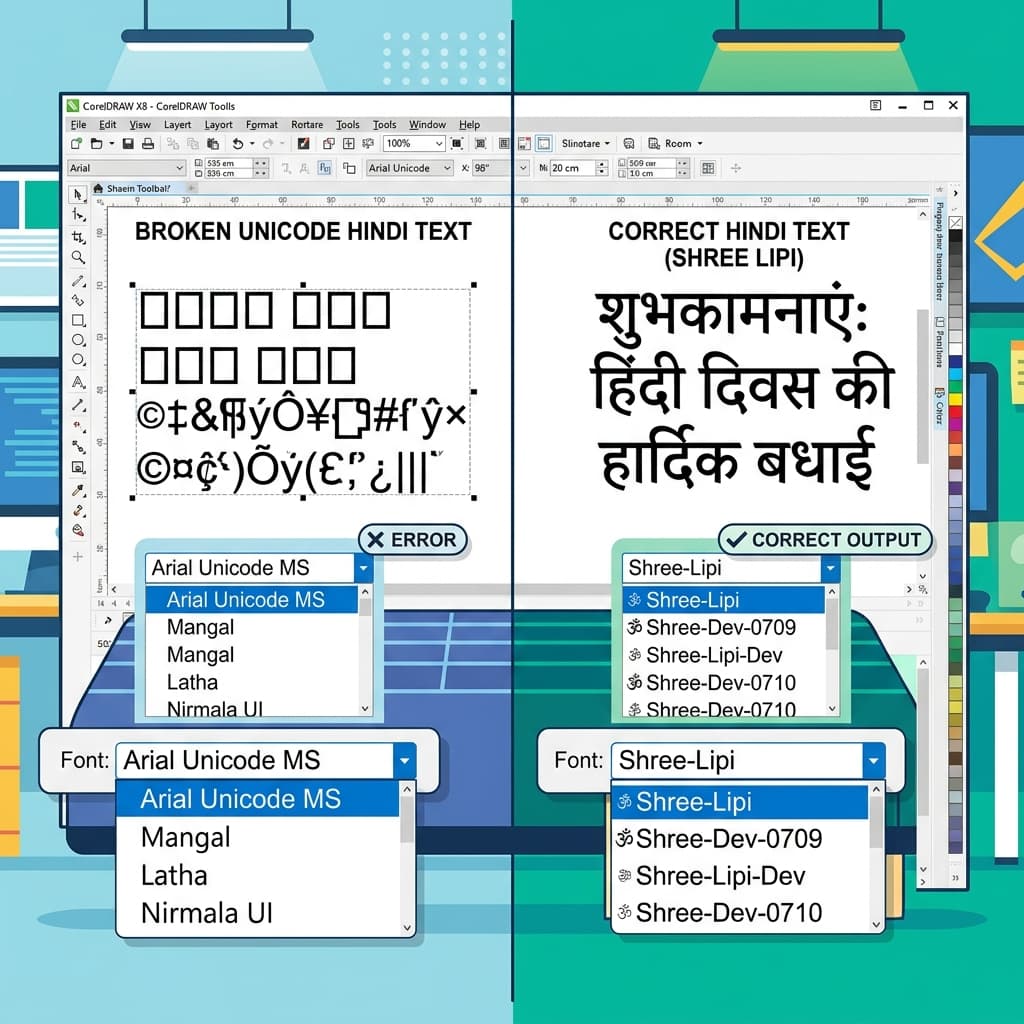
Even switching to a Unicode Hindi font like Mangal does not fully fix it. Matras still misalign. Conjuncts still break. The shirorekha the horizontal line across the top of Devanagari letters, renders inconsistently.
The Shree Lipi method sidesteps all of this entirely. You give CorelDRAW something it can handle perfectly: plain ASCII text paired with a font where every ASCII character is actually a carefully drawn Devanagari glyph. CorelDRAW does not need to understand Hindi. The font does all the heavy lifting.
So What Exactly Is the Shree Lipi Method?
Think of it as a two-step bridge between your Hindi text and CorelDraw.
Step A — You write or collect your Hindi in Unicode. Type it in Google Docs, copy it from WhatsApp, paste it from a Word file — whatever works for you. Modern text from any source is Unicode by default.
Step B — You run it through a converter that translates Unicode into Shree Lipi encoding. The output looks like random English characters, but the moment you apply a Shree Lipi font in CorelDRAW, it transforms into perfect Devanagari matras in the right place, conjuncts formed correctly, shirorekha running clean across the top.
That is the whole method. Two steps. No complicated software. No learning a new keyboard layout.
Newspaper DTP operators, wedding card designers, book publishers, banner makers — this is what they do every single day across India. Now you will too.
Step-by-Step Guide — Hindi Typing in CorelDraw Using Shree Lipi
Follow these steps exactly and you will have clean, professional Hindi rendering in CorelDraw every time.
Step 1 — Install the Shree Lipi Font on Your System
Before anything else, the Shree Lipi font file must be installed on your Windows computer. The most commonly used font for Hindi DTP in CorelDraw is Shree Dev 0714. It is a clean, highly legible Devanagari typeface and the standard for Marathi and Hindi newspaper and design workflows.
Download the font file from unicodetoshreelipi.com/fonts. Right-click the downloaded TTF file and select Install. Restart CorelDraw after installation. Verify the font is available by opening CorelDraw's font dropdown and searching for "Shree Dev 0714."
If your design project uses a different Shree Lipi variant such as Shree Dev 0708, Shree Dev 0750, or a Shree Lipi Gujarati font install that specific variant. The font used during conversion must match the font applied in CorelDraw exactly.
Step 2 — Type Your Hindi Text in Unicode
Open any Unicode-compatible text environment — Google Docs, Notepad, MS Word, or even WhatsApp on your phone. Type your Hindi text using Google Input Tools or Hindi Indic Input 3. Both are free and work reliably for producing Unicode Devanagari.
If your text already exists somewhere a Word document, a website, a client's message, simply copy it. All modern text from digital sources is Unicode by default.
Keep your source text in Unicode at this stage. Do not try to type directly in Shree Lipi encoding manually; that approach is slow, error-prone, and completely unnecessary when a free converter handles it instantly.
Step 3 — Convert Unicode to Shree Lipi
Go to unicodetoshreelipi.com — our free Unicode to Shree Lipi Converter.
Select the correct target font from the dropdown. If you are using Shree Dev 0714 in CorelDRAW, select Shree Dev 0714 in the converter. If you are using a different Shree Lipi variant, select that same variant. This step is critical — the conversion mapping is specific to each font variant, and using a mismatched variant will give you incorrect output even though the conversion appears to run successfully.
Paste your Unicode Hindi text into the input box. Click Convert. The tool processes your text instantly — handling all matras, half-forms, conjuncts, chandrabindu, and special characters automatically. The output appears in the output box.
The output will look like random English characters and symbols. This is completely correct. The text is properly Shree Lipi-encoded — it just looks like gibberish until the Shree Lipi font is applied.
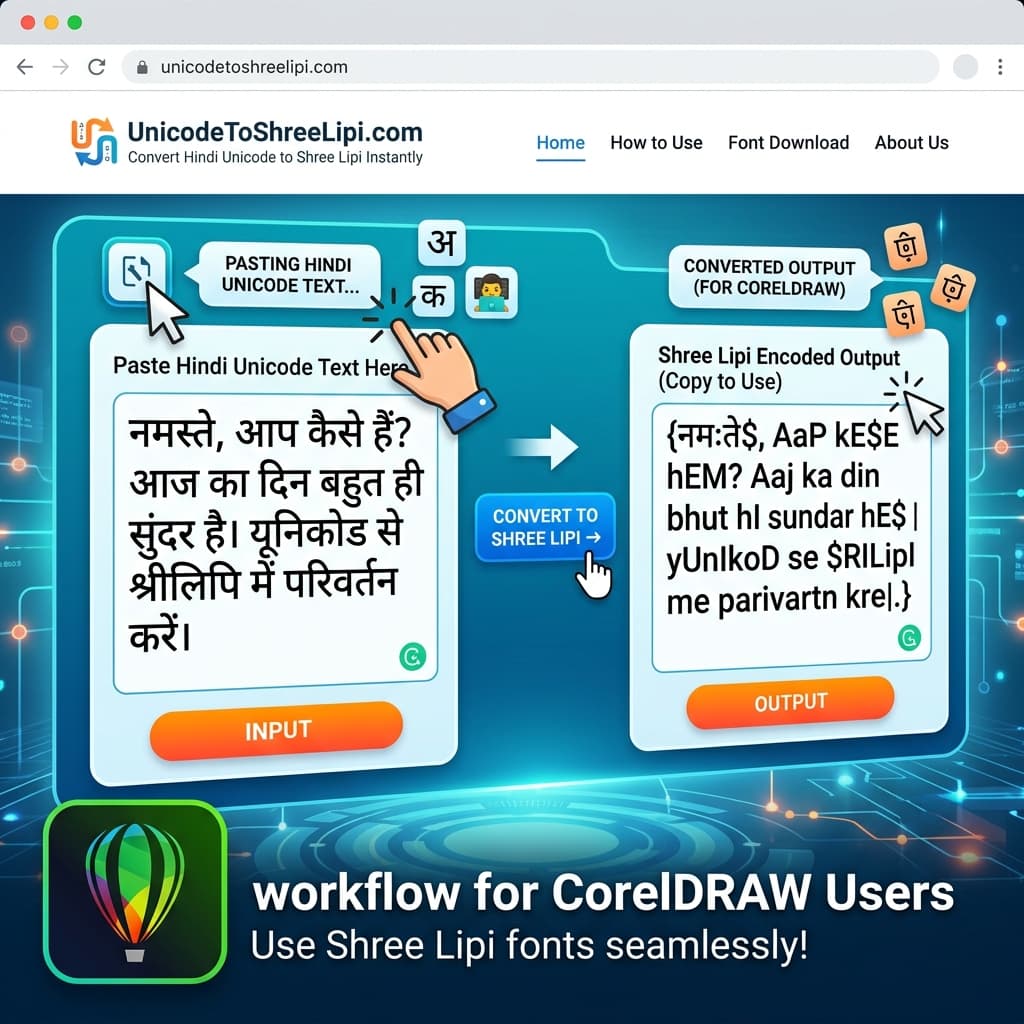
Step 4 — Paste Into CorelDraw and Apply the Font
Copy the converted output from the converter.
Open your CorelDraw file. Select the Text tool. Click on the canvas to create a text object or click inside an existing text frame. Paste the converted text.
Immediately after pasting, select all the pasted text. In the font dropdown, select the correct Shree Lipi font — for example, Shree Dev 0714. The moment you apply the font, the random characters transform into correctly rendered Hindi text. Matras, conjuncts, and half-forms all appear in the right positions.
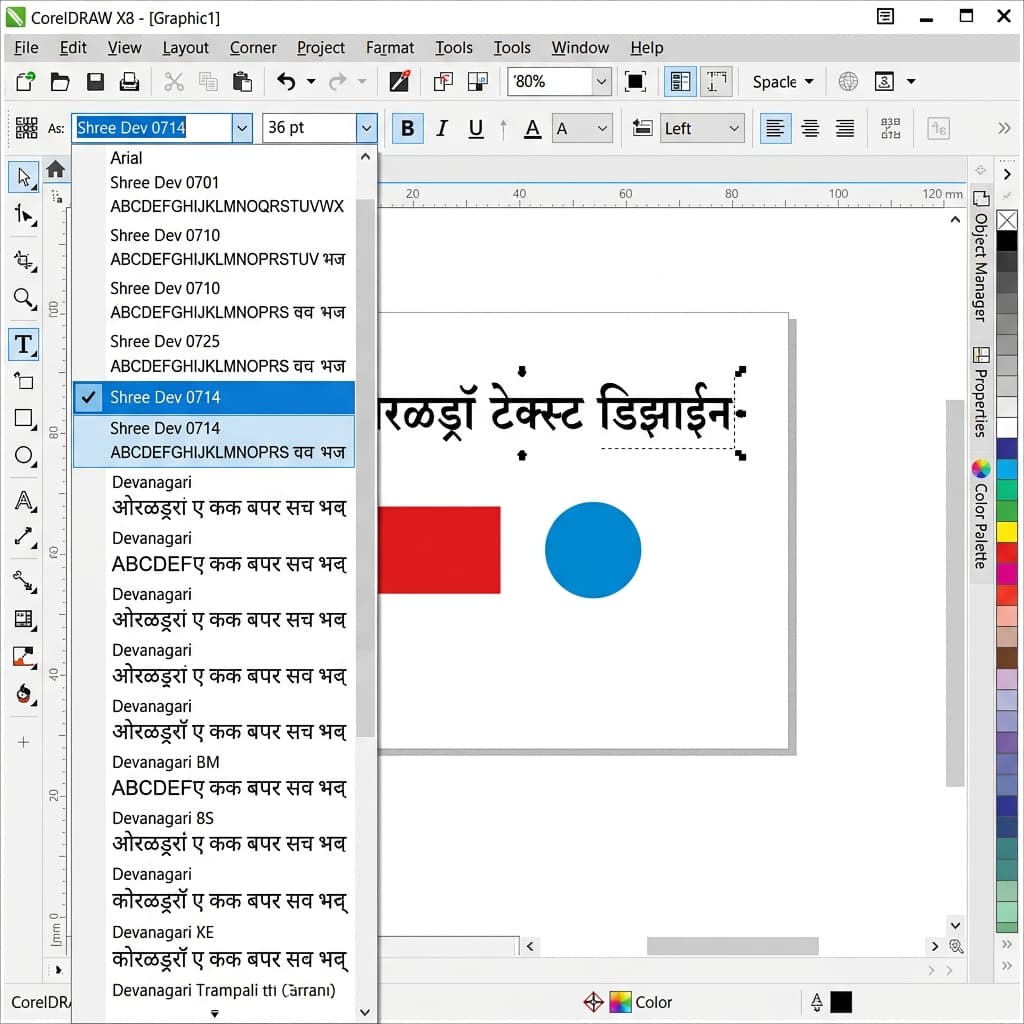
Adjust font size, spacing, and layout as needed. The text is now part of your CorelDraw design and will render correctly on any system that has the same Shree Lipi font installed.
Step 5 — Export for Print
When your design is ready for print, export it from CorelDraw as a PDF with fonts embedded. This ensures that the Shree Lipi font is included in the PDF and the Hindi text renders correctly at the printing press — even if the press's computer does not have the Shree Lipi font installed separately.
Go to File > Export > PDF. In the PDF export settings, enable the "Embed fonts" option. Export and send to print.
Shree Lipi Fonts That Work Best in CorelDraw
Not all Shree Lipi fonts are equally suited for all design purposes. Here is a quick reference:
Shree Dev 0714
- Best for: Marathi newspaper text, document layouts, clean body text
- Style: Clean, highly legible, optimized for readability at small sizes
- Most widely used Devanagari font in Marathi DTP workflows
Shree Dev 0708
- Best for: Book typesetting, formal documents
- Style: Traditional Devanagari letterforms, slightly more classical than 0714
Shree Dev 0750
- Best for: Headings and display text in Hindi layouts
- Style: Slightly bolder weight, good for subheadings and pull quotes
Shree Lipi Bahar Series
- Best for: Wedding cards, festival invitations, religious posters, decorative headings
- Style: Ornamental Devanagari calligraphy with up to 4,400 design variations
- These fonts are the reason designers still prefer Shree Lipi over Unicode for artistic work — no Unicode font can match the decorative variety of the Bahar series.
Always match the font used in the converter to the font applied in CorelDraw. The conversion is font-specific, not generic.
Common Problems and How to Solve Them
Text still shows boxes after applying the Shree Lipi font
This usually happens when the font file is not installed on the system.
Solution: Download it from unicodetoshreelipi.com/fonts, install it, and restart CorelDRAW. Then verify the font appears in the font list before pasting.
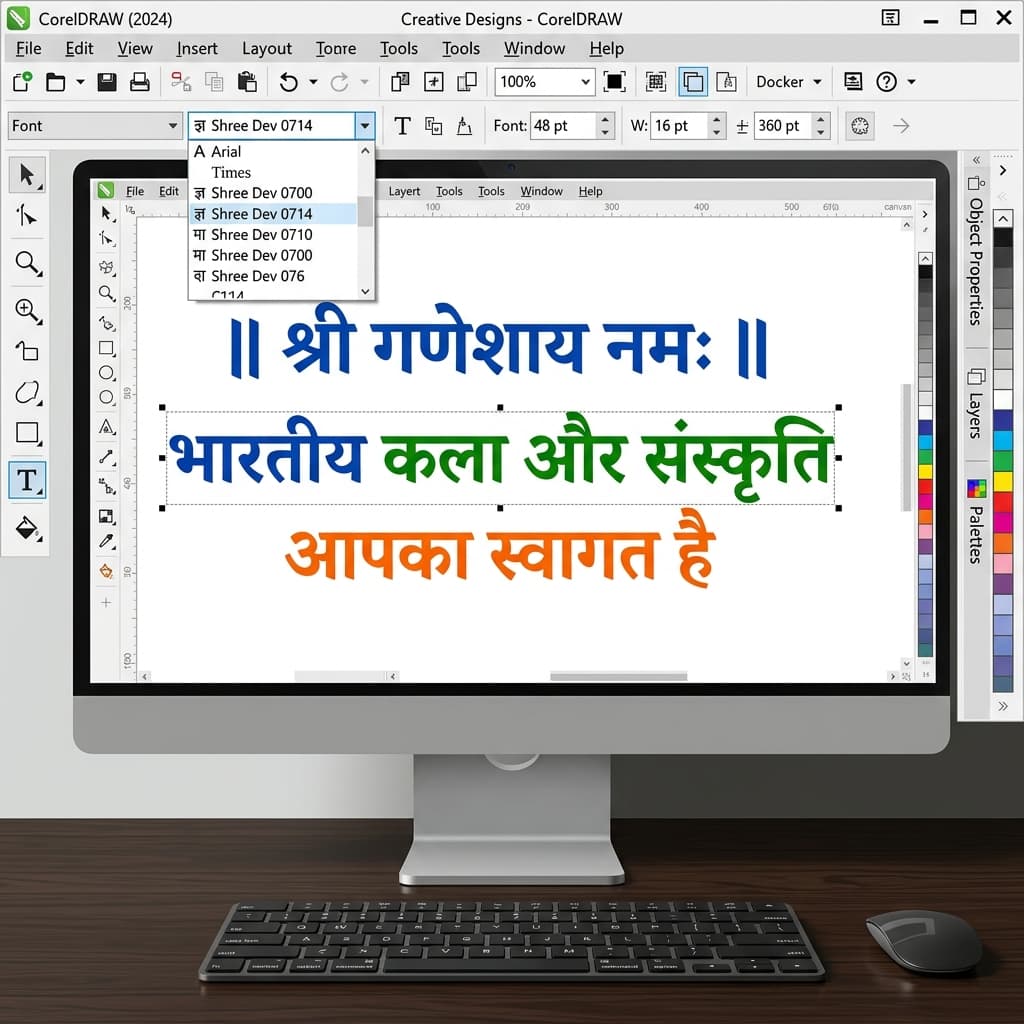
Matras are appearing in the wrong position
The font variant in the converter does not match the font applied in CorelDraw.
Solution: For example, if you converted using Shree Dev 0714 settings but applied Shree Dev 0708 in CorelDRAW, the character mapping is off, and matras will misalign. Use the same variant in both the converter and CorelDRAW.
CorelDRAW's AutoCorrect is changing the pasted text
CorelDRAW sometimes tries to correct what it perceives as spelling errors in the ASCII-encoded Shree Lipi text, which breaks the encoding.
Solution: Disable AutoCorrect in CorelDRAW before pasting. Go to Text > Writing Tools > AutoCorrect Options and turn off all autocorrection.
Specific characters like ड़, ढ़, or chandrabindu ँ are wrong after conversion
These characters can have multiple encodings in legacy fonts.
Solution: After converting, visually check these specific characters in CorelDRAW. If they appear wrong, replace them manually using the correct key combination for that Shree Lipi font's character map.
Text looks correct on screen but prints with broken characters
This happens when font substitution occurs during direct printing.
Solution: Export as PDF with fonts embedded rather than printing directly from CorelDRAW. Use File > Export > PDF, enable font embedding, and send the PDF to the press.
Pro Tips for a Faster Workflow
- Keep a Unicode source file. Always maintain your original Hindi text in a Unicode document. Convert to Shree Lipi only when placing into CorelDraw. This way, if you need to edit the text later, you edit the readable Unicode version and re-convert — rather than trying to decode Shree Lipi ASCII characters in CorelDraw.
- Test before the full layout. Before converting a large amount of text for a complex design, always test with two or three lines. Convert, paste, apply the font, and verify conjuncts and matras are correct. Only then proceed with the complete content.
- Use the Bahar series for decorative elements. If your design needs a striking Hindi heading, one of the Shree Lipi Bahar decorative variants will produce results that no Unicode font can match. Convert the heading text separately using the corresponding Bahar font setting in the converter, then apply that specific Bahar font in CorelDraw.
- Save a template. Once you have a CorelDraw file with Shree Lipi fonts correctly applied and working, save it as a template. Future projects start from a verified baseline instead of repeating the setup from scratch.
Conclusion
Hindi typing in CorelDraw is not rocket science — once you know the right method. And now you do.
Type your Hindi in Unicode. Convert it at unicodetoshreelipi.com. Paste into CorelDraw. Apply the font. Done. Your design looks exactly the way it should — clean, sharp, print-ready Devanagari with no broken characters, no misaligned matras, no last-minute panic.
This is the same workflow that professional DTP studios across India use daily. Now it is yours too.
Bookmark this guide and check our related articles on Shree Lipi font history, PageMaker Hindi workflows, the complete Adobe InDesign Hindi Typing Guide, and Chanakya font setup — everything you need for professional Hindi DTP, all in one place.
Frequently Asked Questions
Ready to convert? Our main tool handles Unicode ↔ Shree Lipi with the same accuracy and speed — instantly in your browser.
Try Unicode ↔ Shree Lipi Converter