How to Convert Hindi Text for PageMaker – Unicode to Legacy Font Guide
You typed your Hindi text in Unicode. Everything looks perfect in Microsoft Word or Google Docs. Then you open PageMaker — and the text turns into broken symbols, random English letters, or empty boxes.
This is not a bug. This is a font encoding mismatch, and it happens to every DTP operator who tries to use modern Unicode text in PageMaker. The fix is straightforward — you need to convert your Unicode Hindi text into a legacy font format before using it in PageMaker. This guide explains exactly why this happens and how to fix it in minutes.
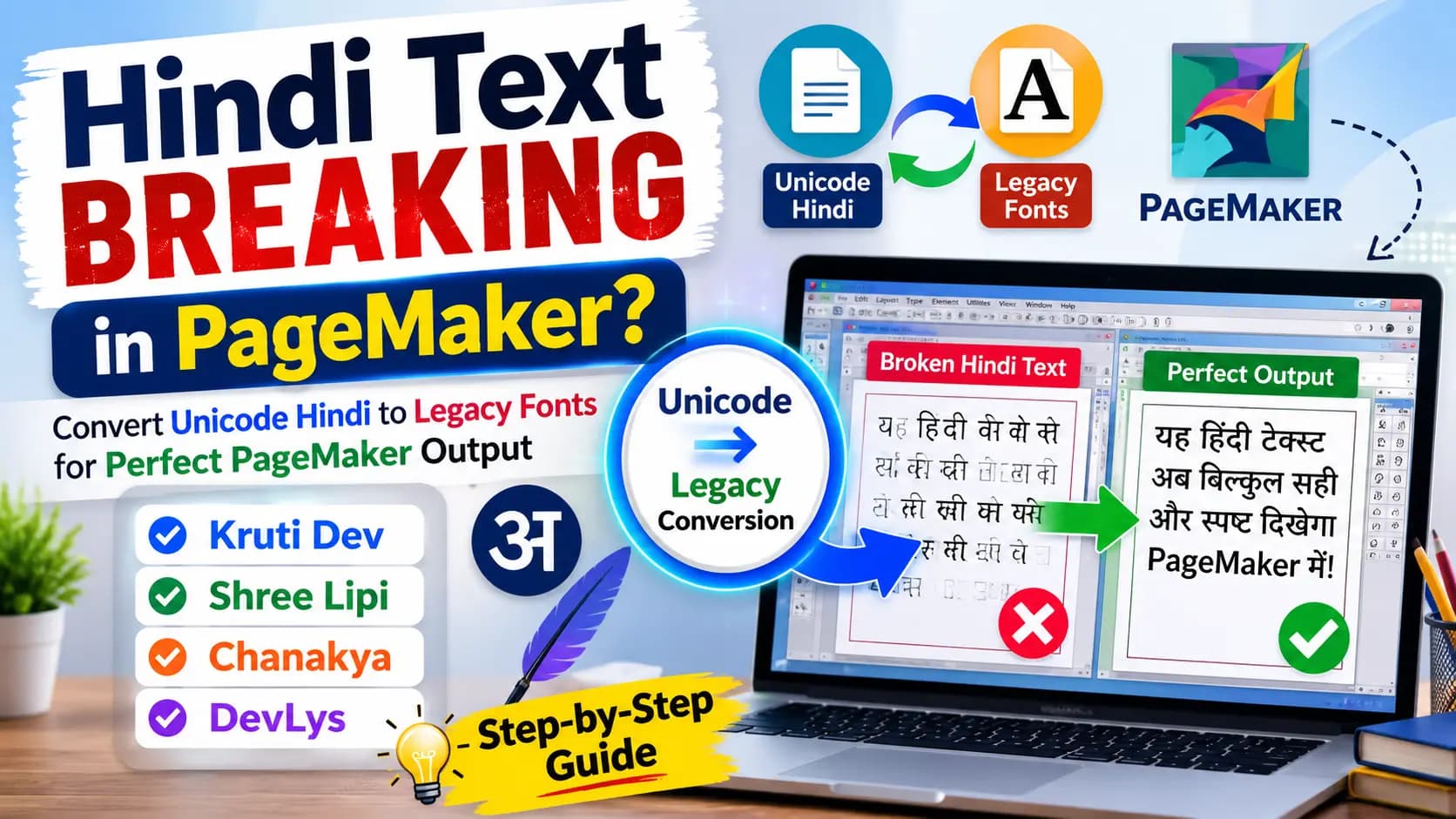
Table of Contents
- Why PageMaker Cannot Display Unicode Hindi Text
- What Exactly Is the Difference Between Unicode and Legacy Fonts?
- Which Legacy Font Should You Convert To?
- Step-by-Step Guide to Convert Unicode Hindi for PageMaker
- How PageMaker Handles Legacy Font Text Internally
- Common Problems and How to Solve Them
- Legacy Fonts Still in Use — Why PageMaker Has Not Died
- The Right Way to Manage Your Workflow Going Forward
- Conclusion
Why PageMaker Cannot Display Unicode Hindi Text
Adobe PageMaker was built in an era when Unicode did not exist. The software was designed to work with ASCII-based legacy fonts — fonts where each Hindi character is mapped to a specific English keyboard key. When you paste Unicode text into PageMaker, the software reads it as random ASCII characters because it has no understanding of the Unicode encoding system.
This is why your text appears as broken boxes, question marks, or meaningless Latin characters. The software is not broken — it simply cannot read a language it was never built to understand.
The solution is to convert your Unicode text into a legacy font format that PageMaker was originally designed to use. Once you do that, PageMaker displays the Hindi text perfectly.
The most commonly used legacy fonts for PageMaker in India are:
- Kruti Dev — most popular for Hindi across North India
- Shree Lipi — widely used in Maharashtra, Gujarat, and Marathi/Gujarati DTP
- Chanakya / Walkman Chanakya — popular with printing presses and book publishers
- DevLys — widely used in Bihar, UP, and government offices
- AMS fonts — used for calligraphy and design work
What Exactly Is the Difference Between Unicode and Legacy Fonts?
Understanding this difference helps you avoid mistakes in your workflow.
Unicode is a global standard. Every Hindi character has a unique code point assigned to it. The character "क" is always U+0915, regardless of which font you use. This is why Unicode text works perfectly on websites, mobile phones, WhatsApp, Google Docs, and modern software — because they all understand the same standard.
Legacy Fonts like Kruti Dev work differently. In Kruti Dev, the letter "क" is stored as the English character "d" on the keyboard. There is no universal standard — each legacy font has its own custom character map. This is why Kruti Dev text pasted into a Unicode environment looks like random English characters — because it IS random English characters that only make sense when displayed through the Kruti Dev font.
PageMaker was built around legacy fonts. So when you try to use Unicode text in PageMaker, the mismatch causes broken output.
| Feature | Unicode (Mangal) | Legacy Font (Kruti Dev) |
|---|---|---|
| Encoding Standard | Universal (ISO) | Font-specific |
| PageMaker Support | Broken output | Renders perfectly |
| Web / Mobile | Works everywhere | Font must be installed |
| WhatsApp / Word | Native support | Shows garbled text |
| DTP / Print Workflow | Modern DTP only | All legacy DTP software |
Which Legacy Font Should You Convert To?
This depends entirely on your purpose and your region.
Kruti Dev
Use this if you are doing general Hindi DTP, preparing government documents, working on newspaper layouts in North India, or if the printing press you are sending work to uses Kruti Dev. Kruti Dev 010 is the most widely used variant and the standard for Hindi typing tests and government work.
Shree Lipi
Use this if you are working on Marathi or Gujarati content, or if your PageMaker templates were originally set up with Shree Lipi fonts. Shree Lipi is the dominant legacy font system for Marathi newspapers and Gujarati publications.
Chanakya / Walkman Chanakya
Use this if you are working with book publishers, printing presses in Maharashtra or UP, or any workflow where Chanakya is the established font. Walkman 901 and Walkman 905 use the same character mapping as Chanakya, so the conversion works perfectly for both.
DevLys
Use this for Hindi DTP work specifically in Bihar, Uttar Pradesh, and Madhya Pradesh. Government offices in these states commonly use DevLys fonts for official printed documents.
AMS Fonts
Use this for calligraphy-style Hindi design — wedding cards, festival banners, posters, and artistic work in CorelDRAW or Photoshop. Learn more in our AMS font typing guide.
Pro Tip
If you are not sure which font to use, ask the printing press or check the fonts installed on the target computer where the PageMaker file will be opened.
Step-by-Step Guide to Convert Unicode Hindi for PageMaker
Follow these steps exactly, and your text will render perfectly in PageMaker every time.
Step 1 — Type or Collect Your Unicode Text
Type your Hindi text using any Unicode method — Google Input Tools, Hindi Indic Input 3, Mangal font in MS Word, or copy text from any website or WhatsApp message. All modern sources produce Unicode text by default, so you do not need to do anything special at this stage.
Step 2 — Open the Correct Converter Tool
Select the converter that matches the legacy font your PageMaker file uses. Our unicodetoshreelipi.com provides dedicated converters for Kruti Dev, Shree Lipi, Chanakya, DevLys, and AMS fonts.
Choosing the correct font variant matters. For example, if your PageMaker file uses Kruti Dev 010, use the Kruti Dev 010 converter — not Kruti Dev 011 or Kruti Dev 016. If your file uses Shree Lipi 7, use the Shree Lipi 7 converter. Mismatched variants will give you the wrong output even if the conversion runs successfully.
Step 3 — Paste Your Unicode Text and Convert
Paste your Unicode Hindi text into the input box of the converter. Click the Convert button. The tool processes your text instantly — handling all matras, half-forms, and conjuncts automatically — and gives you the legacy-encoded output.
Note: The output will look strange in the converter. You will see what appears to be random English characters and symbols. This is completely normal. The text is correctly encoded — it just looks like gibberish until you apply the correct font in PageMaker.
Step 4 — Copy the Converted Output
Copy the converted text from the output box.
Step 5 — Paste Into PageMaker and Apply the Font
Open your PageMaker file. Click on the text area where you want to place the content. Paste the converted text. Now immediately select all the pasted text and apply the correct legacy font — for example, Kruti Dev 010, or Shree Dev 0714, or Chanakya.
The moment you apply the correct font, the text will transform from random characters into perfectly rendered Hindi. This is the correct workflow.
Step 6 — Test Before Processing Large Documents
Before you convert an entire newspaper page or a long document, always test with one or two lines first. Paste a short sample, convert it, paste it into PageMaker, and apply the font. Verify that conjuncts, matras, and special characters are rendering correctly. Only then proceed with the full document.
| Step | Action | Where |
|---|---|---|
| 1 | Type / collect Hindi text | Word / WhatsApp / any Unicode source |
| 2 | Open correct converter | unicodetoshreelipi.com |
| 3 | Paste Unicode text & convert | Converter input box |
| 4 | Copy converted output | Converter output box |
| 5 | Paste into PageMaker & apply font | PageMaker text frame |
| 6 | Test with a short sample first | PageMaker proof |
How PageMaker Handles Legacy Font Text Internally
When you paste legacy font text into PageMaker and apply the correct font, here is what happens internally:
PageMaker reads each character as an ASCII value. The Kruti Dev font file contains a glyph table where each ASCII character is mapped to a specific Hindi character shape. When the software renders the text, it looks up the glyph for each ASCII character in the Kruti Dev font table and displays the corresponding Hindi letter.
This is why the same text looks like gibberish in Notepad or Word (which display ASCII characters) but looks like correct Hindi in PageMaker with the correct font applied. The text itself has not changed — only the interpretation of each character changes depending on which font is applied.
This also explains why you must use the exact correct font variant. Different variants of the same font family (Kruti Dev 010 vs Kruti Dev 011, or Shree Lipi 6 vs Shree Lipi 7) may have slightly different internal character maps, which means a conversion done for one variant will show incorrectly if you apply a different variant.
Common Problems and How to Solve Them
Problem 1 — Matras Are Appearing in the Wrong Position
Symptom: The vowel signs (matras) are appearing before the consonant instead of after, or floating in the wrong position.
Cause: The converter you used does not match the exact legacy font variant in your PageMaker file.
Fix: Identify the exact font name and version your PageMaker file uses. Use the converter for that exact variant. Most matra positioning issues disappear when the font variant is matched correctly.
Problem 2 — Conjuncts Are Not Forming Correctly
Symptom: Compound characters like "क्ष", "ज्ञ", or "त्र" are appearing as two separate characters with a halant in between instead of as a single conjunct.
Cause: Some older legacy font variants use a different encoding for conjuncts. Also, some converters handle conjuncts incorrectly.
Fix: Always test conjunct-heavy text in a short sample before converting a full document. If the conjuncts are breaking, try a different converter or check if the correct font variant is installed on your system.
Problem 3 — Text Still Showing as Boxes in PageMaker
Symptom: Even after pasting the converted text and applying the font, boxes or blank squares still appear.
Cause: The legacy font file is not properly installed on the Windows system that is running PageMaker.
Fix: Download and install the correct font TTF file on the same computer. Restart PageMaker after installation. The font must appear in PageMaker's font dropdown for it to render correctly.
Problem 4 — Output Looks Correct on Screen, But Prints Wrong
Symptom: Text looks fine in PageMaker on screen, but prints with broken characters or missing matras.
Cause: The printer driver is using a different font rendering path than the screen display. Or the font is not embedded in the print job.
Fix: In PageMaker's print settings, enable font downloading and make sure the correct font is included in the print output. For professional printing, always send a PDF exported from PageMaker with fonts embedded rather than sending the native .pmd file.
Problem 5 — Some Characters Are Missing in the Output
Symptom: Specific characters like ड़, ढ़, ँ (chandrabindu), or ॅ are missing or incorrect after conversion.
Cause: These characters have multiple possible encodings in legacy fonts, and some converters handle them inconsistently.
Fix: After conversion, manually check these characters in the output. If they are wrong, replace them manually in PageMaker using the correct keystroke for that specific font's character map.
Legacy Fonts Still in Use — Why PageMaker Has Not Died
Many people outside the DTP industry assume that PageMaker is obsolete. In practice, across smaller cities and towns in India, hundreds of printing presses still run daily workflows on PageMaker 7.0. The reasons are practical:
- Established templates. Newspapers and publishers built their entire page layout infrastructure on PageMaker over decades. Converting those templates to InDesign or QuarkXPress requires both money and retraining — resources that many regional presses do not have.
- Trained operators. Many experienced DTP operators have spent their entire careers working in PageMaker. The software is familiar and reliable for them.
- Cost. PageMaker licenses were purchased years ago. Upgrading the entire workflow costs money, and for a small regional press with tight margins, the existing system works fine for their needs.
- Font investment. Print shops have large libraries of legacy fonts that they have licensed and built workflows around. Migrating those to Unicode equivalents requires time and effort.
This is why Unicode to legacy font conversion remains a daily professional need — not a nostalgic curiosity — for thousands of DTP operators across India.
The Right Way to Manage Your Workflow Going Forward
If you work regularly in PageMaker or other legacy DTP environments, here is the most efficient approach:
Type in Google Docs, MS Word, or any Unicode editor. Unicode is portable, searchable, and works everywhere. Keep your source text in Unicode always.
Once your text is ready and proofread, convert it to the required legacy format for PageMaker. Never convert first and then try to edit — editing legacy font text is painful.
Create a test document with a few lines of correctly rendered text for each font variant you use. Use this as a quick reference to verify conversions before working on full layouts.
Our tool at unicodetoshreelipi.com supports Kruti Dev, Shree Lipi, Chanakya, DevLys, AMS, and more — free, no sign-up required, works in any browser.
🔑 Key Takeaways
- PageMaker cannot read Unicode — it was built for legacy ASCII fonts.
- Always match the exact font variant in the converter to the font used in PageMaker.
- Converted output looks like random characters — that is normal until the font is applied.
- Keep source text in Unicode; convert only at the final stage.
- Test with a short sample before converting full pages.
Conclusion
Hindi text breaking in PageMaker is one of the most common frustrations for DTP operators in India, and the fix is simple once you understand the root cause. PageMaker was never built for Unicode — it needs legacy font encoding to render Hindi correctly.
The workflow is straightforward: write your text in Unicode, convert it to the correct legacy font format using our converter at unicodetoshreelipi.com, paste it into PageMaker, apply the matching font, and your Hindi text will render perfectly every time.
Bookmark this page, follow the steps above, and share it with the DTP operators in your press who still struggle with this problem daily.
Related Guides
Frequently Asked Questions
Ready to convert? Our main tool handles Unicode ↔ Shree Lipi with the same accuracy and speed — instantly in your browser.
Try Unicode ↔ Shree Lipi Converter